

Create an Account
Step-by-step walkthrough for registering on the SMS Pro platform and accessing the developer portal.
To begin integrating with SMS Pro, you must create a developer account on the official SMS Pro web platform. Registration is free and provides immediate access to the full sandbox simulation environment.
Registration Steps
Follow these steps to set up your account:
Navigate to the SMS Pro Platform
Open the SMS Pro console and choose Sign Up. Account creation and sign-in are handled by the Authorisation Server.
Enter Your Account Credentials
Complete the prompts on the Authorisation Server. Use a work email address. The server may also offer a social sign-in.
Confirm the account
Finish whatever confirmation the Authorisation Server asks for, such as an email code, before returning to the console.
Set your profile
After the first sign-in, open Account settings. You can set a display name and a phone number. The email address stays with the Authorisation Server.
Access the Customer Dashboard
Once onboarded, you are automatically directed to your main Customer Dashboard (/customer/dashboard).
Exploring the Customer Console
The SMS Pro Console provides a unified interface for managing both manual campaign operations and automated developer integrations:
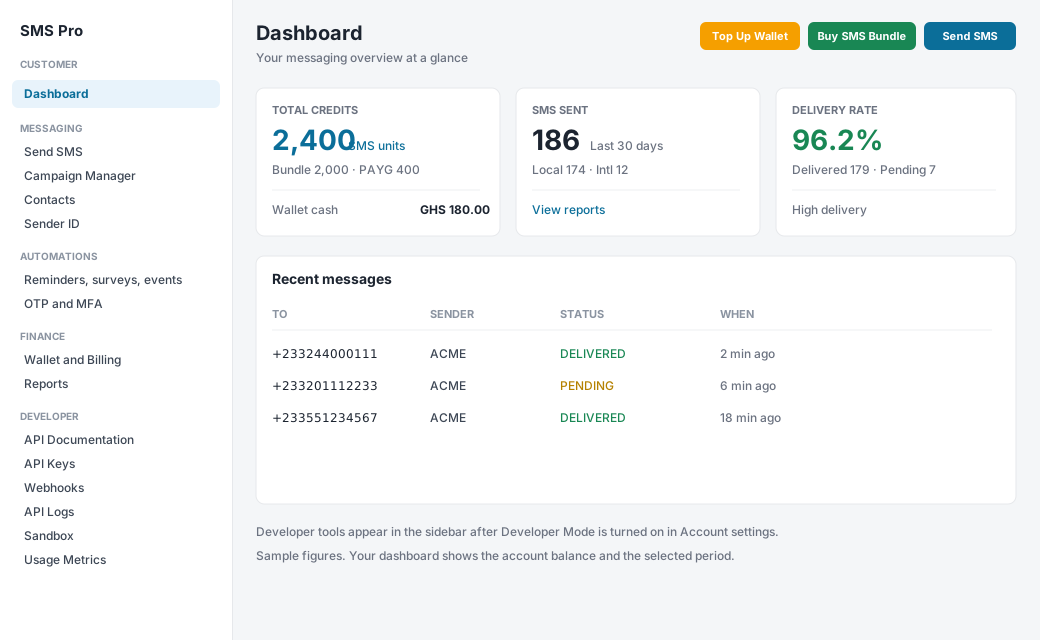
| Console section | Purpose |
|---|---|
| Dashboard | Credits, wallet cash, messages sent, and delivery rate for the selected period. |
| Send SMS | Compose a message or pick one from Message Bank. |
| Campaign Manager | Bulk and scheduled sends. |
| Contacts | All contacts, groups, and imports. |
| Sender ID | Request a sender name and track approval. |
| Automations | Reminders, birthdays, surveys, events, and short links. |
| OTP and MFA | Quick OTP and MFA workflows. |
| Wallet and Billing | Balance, top-up, bundles, subscriptions, and history. |
| Reports | Summary, detailed reports, and exports. |
| Developer | Shown after Developer Mode is on: API Documentation, API Keys, Webhooks, API Logs, Sandbox, and Usage Metrics. |
After sign-in
If the account has SMS credit, has not sent a message, and has not topped up, the dashboard shows Complimentary Test SMS Credits Active. You can dismiss that banner. Send from Send SMS, or turn on Developer Mode and call the API with an sk_test_ key.
Live sends need an approved Sender ID and wallet credit. Request the sender name from Sender ID. There is no separate business-profile page. See Going Live.
Marketing messages are held during the platform quiet hours, 21:00–07:00 local time. Transactional messages and OTP are not held. Account settings shows this policy. It is not a switch on your account.
Next Step
With your account established, the next step is to toggle the developer environment and generate your first API keys in Developer Environment & API Keys.