

Developer Environment & API Keys
How to enable Developer Mode on SMS Pro, provision scoped API keys, assign granular permissions, and safeguard credentials.
To begin making programmatic API requests, you must enable the Developer Environment in your SMS Pro account and generate an API key with the appropriate security scopes.
1. Enabling Developer Mode
By default, the SMS Pro Console displays a simplified interface tailored for marketing and manual messaging. Enabling Developer Mode reveals advanced programmatic tools, API logs, and webhook management.
Open Settings or Developer Preferences
Log in to the SMS Pro console and open Account settings.
Toggle Developer Mode On
Locate the Developer Mode toggle switch and toggle it On.
This activates the DEVELOPER_ENABLED feature for your organization profile.
Access the Developer Section
Once enabled, a Developer group appears in the sidebar:
- API Documentation
- API Keys
- Webhooks
- API Logs
- Sandbox
- Usage Metrics
2. Choosing Your Key Type
In Developer > API Keys, SMS Pro offers two types of keys:
| Key Type | Scope & Authority | Recommended Use Case |
|---|---|---|
| Master API Key | Has full, unconstrained access across every endpoint, campaign, and wallet function in your organization. | Initial sandbox experimentation or administrative orchestration tools. Only one Master Key exists per account. |
| Scoped API Keys (Recommended) | Bound to specific permissions, environments (live vs test), dedicated traffic queues, rate limits, and optional IP allowlists. | Production microservices, third-party backend integrations, and serverless functions adhering to the Principle of Least Privilege. |
3. Generating a Scoped API Key
The form is already on the page. Fill it in and click Add API Key. It does not open a separate dialog.
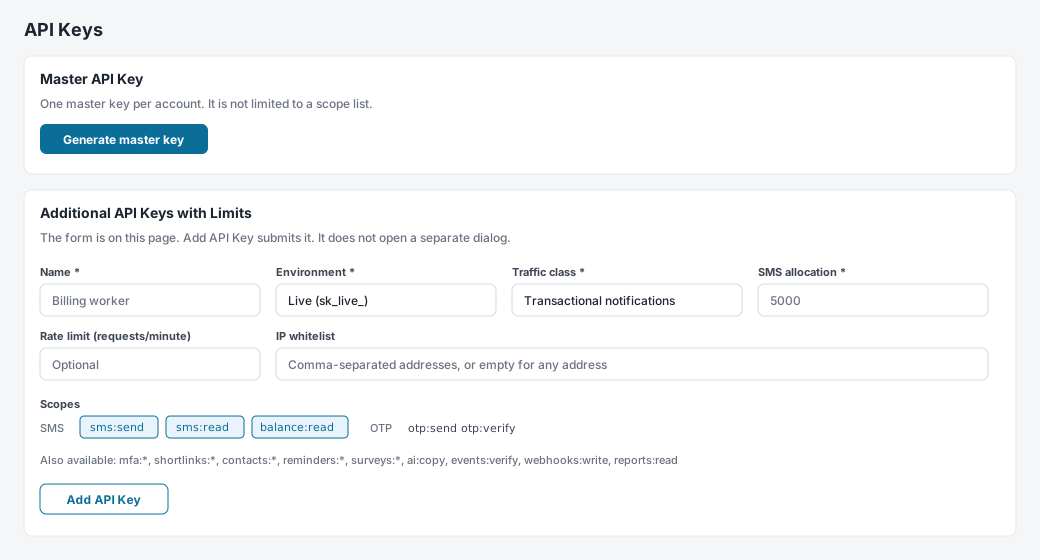
Configuration fields
1. Key name
A label for the service using this key, such as Billing worker.
2. Environment
The default is Live (sk_live_). Choose Test / Sandbox (sk_test_) while you are integrating. Both keys call https://api.smspro.com. A test key simulates delivery and does not charge the wallet.
3. Traffic class
- OTP and 2FA: Verification messages.
- Transactional notifications: Receipts, alerts, and other operational messages.
- Marketing campaigns: Broadcast traffic.
4. SMS allocation
Required. Once the key has used this many units, further sends with that key are rejected with 422 API_KEY_ALLOCATION_EXCEEDED.
5. Rate limit
Optional requests-per-minute cap. Above the cap the API returns 429.
6. IP whitelist
Optional comma-separated addresses. A request from any other address is rejected as an invalid key.
4. Selecting Granular Scopes
Scopes define the exact permissions granted to the API key. Follow the principle of least privilege—only check the permissions your integration strictly needs:
| Domain | Scope Identifier | Description |
|---|---|---|
| SMS Messaging | sms:send | Authorizes single and bulk SMS dispatch via /api/v1/public/sms/*. |
sms:read | Read delivery statuses, message history, and job metrics. | |
balance:read | Check account wallet balances and unit rates via /api/v1/public/account/balance. | |
| OTP & 2FA | otp:send | Dispatch automated numeric one-time verification passcodes. |
otp:verify | Validate user-submitted OTP codes against active challenges. | |
| Zero-Knowledge MFA | mfa:challenge | Create cryptographically blind MFA challenges. |
mfa:verify | Verify client-side zero-knowledge MFA proofs. | |
mfa:read | Query MFA configuration workflows and active sessions. | |
mfa:write | Configure and update organizational MFA security workflows. | |
| Branded Shortlinks | shortlinks:write | Create and shorten trackable branded short URLs. |
shortlinks:read | Retrieve real-time click telemetry, referrers, and device analytics. | |
| Contacts & Lists | contacts:write | Create, update, or delete subscriber phone books and custom tags. |
contacts:read | Read subscriber profiles, birthday reminders, and list metadata. | |
| Automations | reminders:write | Schedule and cancel automated calendar reminders. |
reminders:read | Query active and pending scheduled reminders. | |
surveys:write | Launch interactive two-way SMS micro-surveys. | |
surveys:read | Inspect customer responses and satisfaction survey results. | |
| Ops | webhooks:write | Register and update webhook URLs. |
reports:read | Read delivery reports. | |
| AI and events | ai:copy | Use the copy assistant. |
events:verify | Verify event ticket codes. |
5. Storing Your Secret Key Securely
When you click Add API Key, the secret is shown once in a banner on the page:

sk_test_exampleKey Displayed Only Once
Once you leave this page, the full key cannot be viewed again. If you lose it, revoke it and create another.
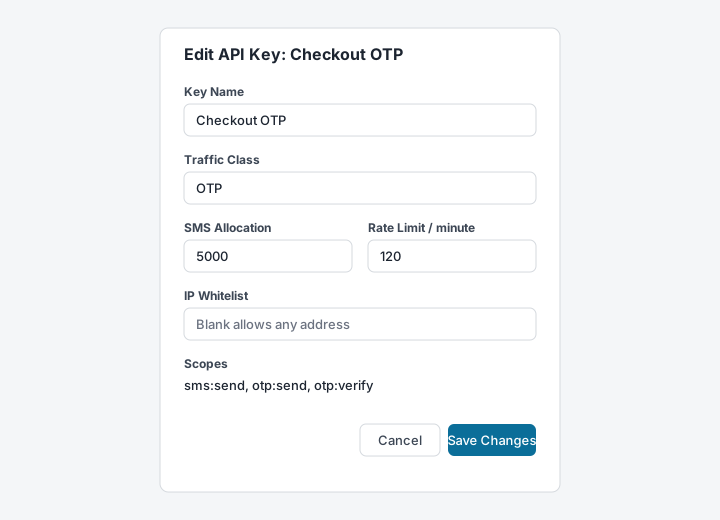
The only dialog on this page is Edit API Key. It changes the name, traffic class, allocation, rate limit, IP whitelist, and scopes. It does not show the secret again.
Recommended Storage Practices
- Environment Variables: Store your key in
.env.localor.envand add the file to your.gitignore:.env.local SMSPRO_API_KEY=sk_test_example SMSPRO_BASE_URL=https://api.smspro.com - Never Commit to Source Control: Do not hardcode API keys directly in client-side mobile applications, frontend React/Vue code, or public GitHub repositories.
- Key Rotation: When rotating credentials, generate a new scoped key first, update your production environment variables, verify successful traffic, and then revoke the old key.
Next Step
Learn how to attach your credentials and construct valid HTTP request headers in Authentication.